- Introduction
- What Is Cross-Browser Compatibility Testing?
- Why Does Cross Browser Compatibility Matter?
- What Are the Types of Cross Browser Testing?
- How Do You Build a Browser Testing Matrix?
- What Tools Do Beginners Need to Get Started?
- What Are Some Common Mistakes to Avoid?
- Cross-Browser Testing FAQs
- Conclusion
Introduction
You build a site. You test it in the browser you have open. It looks fine, so you ship it.
Then someone opens it in Safari, and the layout is off. Or a button doesn’t respond in Firefox. Nothing in your code changed. The browser just rendered it differently.
This happens to nearly everyone starting out, because it’s not obvious at first that browsers don’t all render the same code the same way. Cross-browser compatibility testing is how you catch this before a user does, and it’s simpler to learn than it looks.
This guide walks through what it is, why it matters, and how to start testing your own projects across browsers, even if you’ve never done it before.
What Is Cross-Browser Compatibility Testing?
Cross-browser compatibility testing is the practice of verifying that a website or web application works consistently and correctly across different web browsers, browser versions, operating systems, and devices.
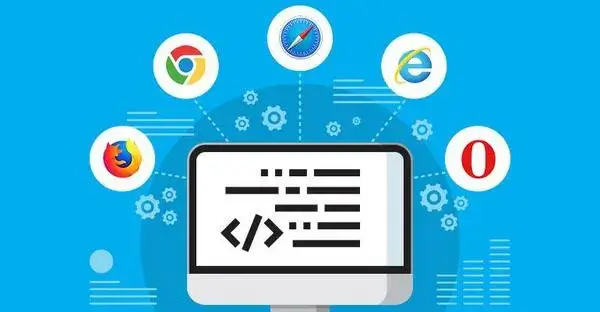
Even though modern browsers adhere to web standards set by organizations like the W3C, each browser relies on its own rendering engine (such as Blink for Chrome, Gecko for Firefox, or WebKit for Safari). Because these engines interpret code slightly differently, a site that looks and functions perfectly in Google Chrome might break, misalign, or fail to execute scripts in Safari, Firefox, or Microsoft Edge.
Cross-browser compatibility testing helps identify these differences before users do. It ensures that layouts render correctly, features work as intended, and interactions remain consistent regardless of the browser or device someone uses.
The primary goal of cross-browser compatibility testing is to ensure that all users have a consistent and reliable experience regardless of the browser, operating system, or device they use.
Why Does Cross Browser Compatibility Matter?
Users access your application from different devices and browsers. They expect a clean layout and working features regardless of the software they choose. Ensuring your site runs across all target environments protects your business in a few ways:
Maximizing User Reach
Global traffic spreads across multiple browser engines. Chrome has the largest market share, followed by Safari, Edge, and Firefox. Millions of people use Safari, Edge, Firefox, Samsung Internet, and other browsers every day. Testing across the browsers helps ensure more people can access and use your website without running into issues.
Enhancing User Experience
A page that loads correctly in one browser can behave differently in another. Broken layouts, buttons that don’t respond, or forms that fail to submit can interrupt the user experience. Cross-browser testing helps you catch these issues before your users do.
Improving SEO and Accessibility
Search engine algorithms penalize sites that deliver poor user experiences or layout failures. Clean, standards-compliant code that renders across browsers helps maintain search visibility. Cross-browser testing also supports screen readers and assistive tech, keeping your app accessible to users with disabilities.
Preserving Brand Credibility
Visual glitches degrade trust. Broken navigation menus, offscreen text, or misaligned buttons make an app feel unpolished. Reliable performance across every platform signals strong quality control and maintains customer confidence.
Reducing Development and Maintenance Costs
Browser-specific bugs are usually easier to fix during development than after deployment. Finding them early reduces rework, avoids last-minute fixes, and makes future updates easier to manage.
What Are the Types of Cross Browser Testing?
Cross-browser testing involves checking several parts of a website. It mainly splits along two lines: how you run it, and what you’re checking for. Both matter equally. Here are the key ones:
Manual testing
You open the site yourself, in each target browser, and click through it directly. This works well for a first pass or a small site, since it needs no setup beyond the browsers themselves. It doesn’t scale past a handful of browsers or a small number of releases.
Automated testing
A script runs the same set of checks across multiple browsers without a person clicking through each one. Tools like Selenium, Playwright, and Cypress handle this. It takes more setup upfront, but it runs on every release without added manual effort.
Functional Testing
Functional testing checks that features work as expected in every browser. This includes navigation, forms, buttons, search, login, checkout, and other actions users perform. A feature that works in Chrome should work the same way in Firefox, Safari, and Edge.
Visual Testing
Visual testing checks how a page looks across browsers. It helps find layout shifts, overlapping text, missing icons, font differences, broken images, and other UI issues that affect the appearance of a website.
Accessibility Testing
Accessibility testing checks whether people using keyboards or assistive technologies can use the website across supported browsers. It includes things like keyboard navigation, screen reader support, focus order, and color contrast.
Responsive Testing
Responsive testing checks that a website adapts to different screen sizes and devices. Pages should remain readable and easy to use on desktops, tablets, and mobile phones, regardless of the browser.
Performance Testing
Performance testing measures how a website loads and responds in different browsers. It helps identify slow page loads, rendering delays, or browser-specific performance issues that affect the user experience.
Most testing setups combine these into two working pairs: manual and automated for how the testing runs, functional, performance and visual for what it’s checking. A complete process usually needs both.
How Do You Build a Browser Testing Matrix?
A browser testing matrix is the list of browsers, versions, and devices you actually test against. Build your matrix around your actual user traffic, instead generic industry market share of popular browsers.
Pull your analytics and check which browsers your visitors use. Most sites find that three or four browsers cover the large majority of traffic, usually Chrome, Safari, and one or two others depending on the audience.
Group those browsers by rendering engine, not by name. Chrome and Edge both run on Blink, so testing one gives you a good signal for the other. Safari runs on WebKit, and on iOS, every browser is forced onto WebKit as well, so a desktop Safari check doesn’t cover the mobile version.
Always include at least one native mobile environment. Desktop emulation can resize a viewport, but it cannot accurately simulate touch mechanics, virtual keyboards, or dynamic mobile address bar heights.
Finally, review your matrix from time to time. Browser usage changes, new versions are released, and your audience may shift. Audit your web analytics quarterly. Swap target environments in or out as your user base changes.
What Tools Do Beginners Need to Get Started?
Getting started with cross-browser testing comes down to two things: a way to write your tests and a way to run them across different browsers.
Frameworks handle the first part. Selenium is the most established option and supports several programming languages, making it a good choice if you already work with Java or Python. Playwright, developed by Microsoft, includes Chromium, Firefox, and WebKit out of the box, so you can start testing with very little setup. Cypress is another popular option for modern JavaScript applications, though it supports fewer browsers than Selenium or Playwright.
Running those tests on real browsers is the second part. That’s where many beginners get stuck. Installing multiple browser versions and operating systems on a local machine isn’t practical.
Platforms like TestMu AI help solve that problem. TestMu AI, formerly LambdaTest, gives you access to real browsers and operating systems through the cloud. You can open a live browser session in seconds, without installing or maintaining anything locally. It’s a simple way to start testing across different browser environments before moving on to automation.
What Are Some Common Mistakes to Avoid?
Cross-browser testing doesn’t need to be complicated. Avoiding a few common mistakes will help you catch more issues and make your testing more effective.
Testing only in one browser
Most developers write and test in the browser they personally use, usually Chrome. It’s the easiest mistake to make, since the site works well while you’re building it. The problem only shows up once a user opens it somewhere else.
Skipping mobile browsers
Desktop testing catches a lot, but not everything. Touch interactions, smaller screens, and mobile Safari’s quirks introduce issues a desktop check won’t surface. If mobile traffic makes up any real share of your visitors, it needs its own check.
Treating it as a one-time task
Testing before launch catches what exists at launch. Browsers update on their own schedule, and new code ships after launch too. A site that passed every check six months ago can fail today without a single change on your end.
Not logging bugs with enough detail
High level bug descriptions aren’t enough to act on fast. A useful bug report includes the browser, the version, the operating system, and the exact step where it failed. Without that, someone has to reproduce the problem from scratch before they can even start fixing it.
Assuming standards compliance means consistency
Browsers follow the same web standards, but compliance doesn’t guarantee identical output. Two browsers can both correctly implement a CSS property and still render it with small differences. Testing is what catches the gap between compliant and consistent.
Ignoring older browser versions
Not every user runs the latest version of their browser. Some are a few versions behind, whether by choice or because their device can’t update further. A matrix built only around the newest releases misses this group entirely.
Cross-Browser Testing FAQs
What’s the difference between cross-browser testing and cross-device testing?
Cross-browser testing checks how a site behaves across different browsers and rendering engines. Cross-device testing checks how it behaves across different screen sizes and hardware, like a phone versus a laptop. A full testing process usually covers both, since a browser can behave differently depending on the device it runs on.
Do I need to test on every browser version, or just the latest?
Test the latest version of each browser first, since that covers most of your traffic. Add older versions only if your analytics show a meaningful share of users still running them.
Is cross-browser testing only relevant for websites, or does it apply to web apps too?
It applies to both. Web apps often rely more heavily on JavaScript, which makes them more sensitive to the differences between browser engines than a mostly static website.
How long does manual testing take when you’re just starting out?
A basic check across three or four browsers, covering your core pages and flows, usually takes 15 to 30 minutes once you know what to look for. It takes longer at first, while you’re still learning what to check.
Can cross-browser testing be done without writing any code?
Yes. Manual testing requires no code at all, just opening the site in each browser directly. Writing code becomes necessary only once you move to automated testing.
Conclusion
Cross-browser compatibility testing isn’t complicated to start. It just needs a matrix of target browsers, a way to check functionality and layout, and a habit of running it on every release, not just before launch.
Start small. Pick two or three browsers based on your actual traffic, run a manual check, and build from there once it becomes routine.